02 July 2020
Bitmoji Google Keep Headers


I created mine in Google Slides, but you could also create these in Microsoft PowerPoint too. I would share mine with you, but they are really the most fun to create yourself! But here is how I go started...

- After I opened Google Slides, I changed the size of my slides.
- Go to File -> Page setup.
- Change the drop down box to Custom.
- Then change the unit to Pixels.
- I set mine to 600 x 300 pixels.
- Then click Apply.
What categories would you need to organize your Google Keep? Share your ideas in the comments below!



31 December 2019
Gifts from Google
I think I forgot to make this announcement on here. It was a process that was a little intimidating to me but once I sat down and put my mind to it. In October I achieved a HUGE goal of mine to become a...

Yay! Look...I'm even listed in the Google Trainer directory! I have been busy since creating a lot of new staff development for teachers at my school...and I look forward to sharing it with you too!

GOOGLE CERTIFIED TRAINER!
Yay! Look...I'm even listed in the Google Trainer directory! I have been busy since creating a lot of new staff development for teachers at my school...and I look forward to sharing it with you too!
So you know I really love G Suite for Education? You know why? Did you know the amazing amount of ways that G Suite for Education and its apps can make life easier in your classroom? In the slide deck below, I share with you some of the gifts Google provides through G Suite for Education and more...
I hope you enjoy all of these tips and tricks...in the comments below tell me which one blew your mind the most!
12 November 2019
Embed Google Slides in your LMS
Hey y'all! Google Slides are an amazing tool that can be used in soooooo many amazing ways. If you are able to embed in your Learner Management System...Google Slides make putting information out there in easy ways! Here is are some quick examples of how to use Google Slides in BrightSpace/D2L that I put together for my teachers. Get a template of each Google Slide deck in the link under under each example...
17 March 2019
Another quick freebie -- Note and Quote Sticky Notes
I wanted to share another something else that I designed in Tony Vincent's Classy Graphic class!
I designed a set of black and white sticky notes...Happy Notes and Quotes. Inside the file is a link to directions on how to print these sticky notes for yourself
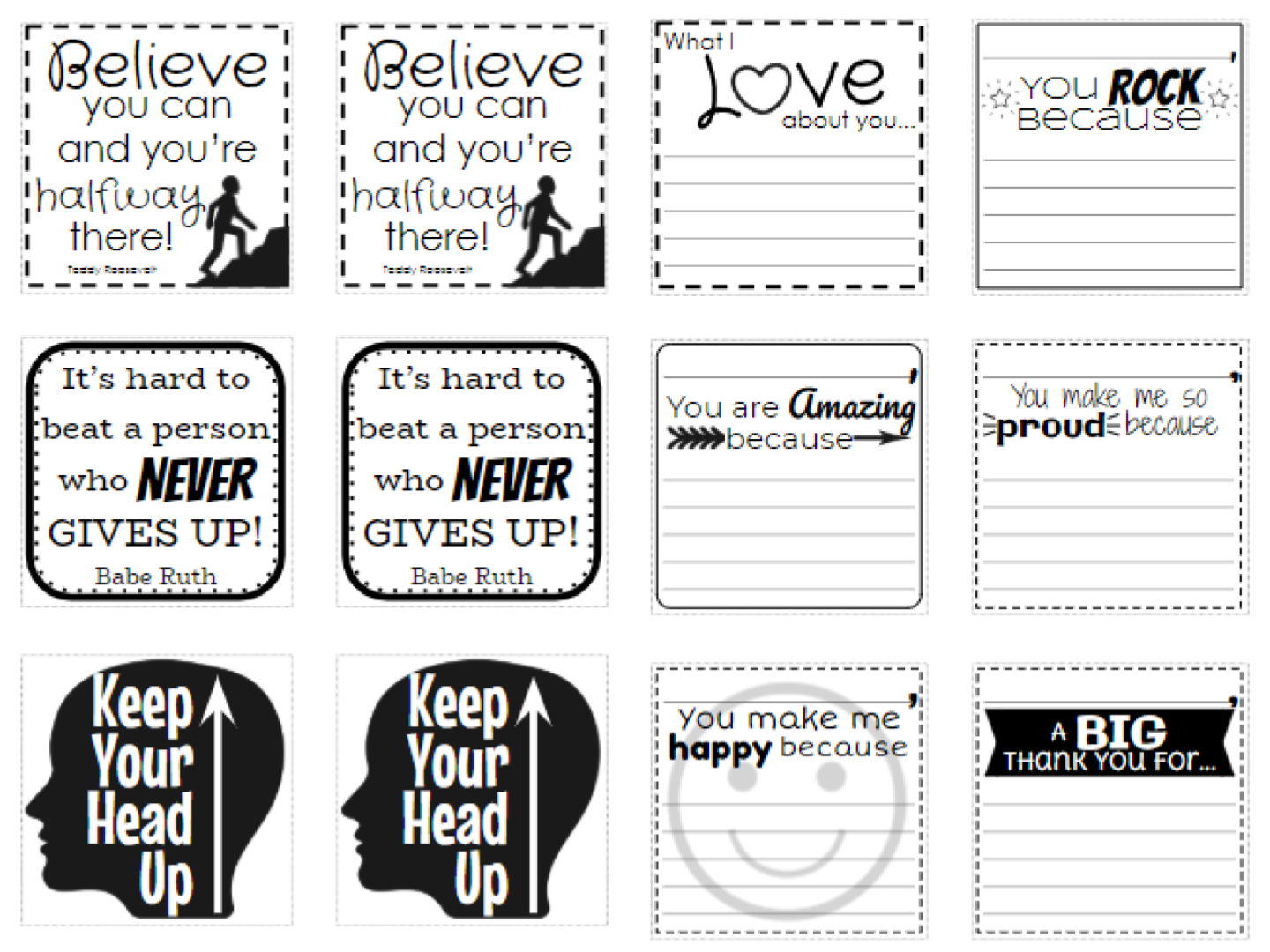
Enjoy!
I designed a set of black and white sticky notes...Happy Notes and Quotes. Inside the file is a link to directions on how to print these sticky notes for yourself
Enjoy!
13 February 2019
A Quick Freebie Google Drawings Graphic Organizer
I am currently taking the Classy Graphics class from Learning In Hand with Tony Vincent to pick up some fun tips and pointers about designing graphics and learning activities in G Suite apps like Google Drawings, Slides, and more.

Our first week assignment was to create a graphic organizer in Google Drawings. The second graders at my school are beginning research on our Moon, so I thought it would be fun to make a little graphic organizer for them to use.


Our first week assignment was to create a graphic organizer in Google Drawings. The second graders at my school are beginning research on our Moon, so I thought it would be fun to make a little graphic organizer for them to use.

Each of the white boxes is a text box. Students can type the facts they find in the boxes. I would also encourage them to type the name of the resource or website where they found there fact.
Get your copy of this graphic organizer by clicking here then clicking the Use Template button.
Enjoy!
10 February 2019
Better Than Brag Tags...Swag Tags!!!
I have told you a little about my Professional Development badging program...but students can benefit from a similar type program too! I found out about an amazing line of Swag Tags from Boost Promotions that would help you accomplish an amazing student badging program in your classroom.
First, you may wonder why Boost Promotions' Swag Tags? These swag tags are super durable! They seem like they are made of plastic but more likely a laminated cardstock. They come in a variety of sizes and shapes including ovals, guitar pics, circles, shields, pencils, and more!

Boost Promotions' Swag Tags also have an almost overwhelming selection of designs in their Design Library. Boost Promotions's Design Teams have created Swag Tags for academics,
arts, attendance, behavior, birthdays, clubs, holidays, collectibles, and other awards. If you are like me, you can even modify their designs or create your own.
To start out, I suggest giving one of the Teacher Kit Swag Tags a try. You can choose 10 packs of designs. There were so many cute designs I had a difficult time deciding on just 10...

While I suggest Boost Promotions' Swag Tags for badging, you can also use them for other incentive or reward programs. Some schools even sell them as a fundraiser! They can fit so many needs...they are worth the look!
03 February 2019
PD Badging - Part 2: The Badges
So in my last post, I introduced you to the PD Badging program I created for my school called the B.E.S. Tech Challenge. Now you are probably thinking what exactly must be done to earn a badge? Or the more popular question I receive, where do you get these cute badges from? Let me start by answering these questions, and more....
How do you choose what tools or topics you create badges for?
I have a couple different ways I choose what tools or topics I will offer badges for.
- My school district has a set of evidence-based pedagogical strategies supported by the district for use in every classroom called the Quality-Plus Teaching Strategies. Each strategy has tools that help support the use of these strategies. I want teachers at my school to have the knowledge of how to use these tools in their bag of tricks, so those are included (or being worked on being included) in my PD Badging program.
- I take the recommendations of ed tech tools and topics from other technology coordinators and coaches as well as those I have collaborated with on the work for this PD Badge program.
- I also take the recommendations and suggestions for badges from the teachers at my school. I love hearing what tools and topics they about which they have heard and would like to learn more.
What must be done to earn a badge?
To earn a badge, learning as well as evidence of that learning must be completed. Learning through videos and other websites are available through the badging website. While record my own screencasts as well, I rely on videos posted on YouTube as well as tutorials posted by others on websites and other bloggers. I am also available to teachers to help them through their learning.
 Once the learning is complete, evidence of that learning needs to be submitted. Evidence is usually creating something using that tool by the teacher or the student. Or evidence could be a score report from using a tool in a lesson. Whatever the evidence is, the teacher is encouraged to use the learning they are doing in a lesson.
Here is an example of one badge and what must be completed in other to earn a badge, Animoto Level 1...
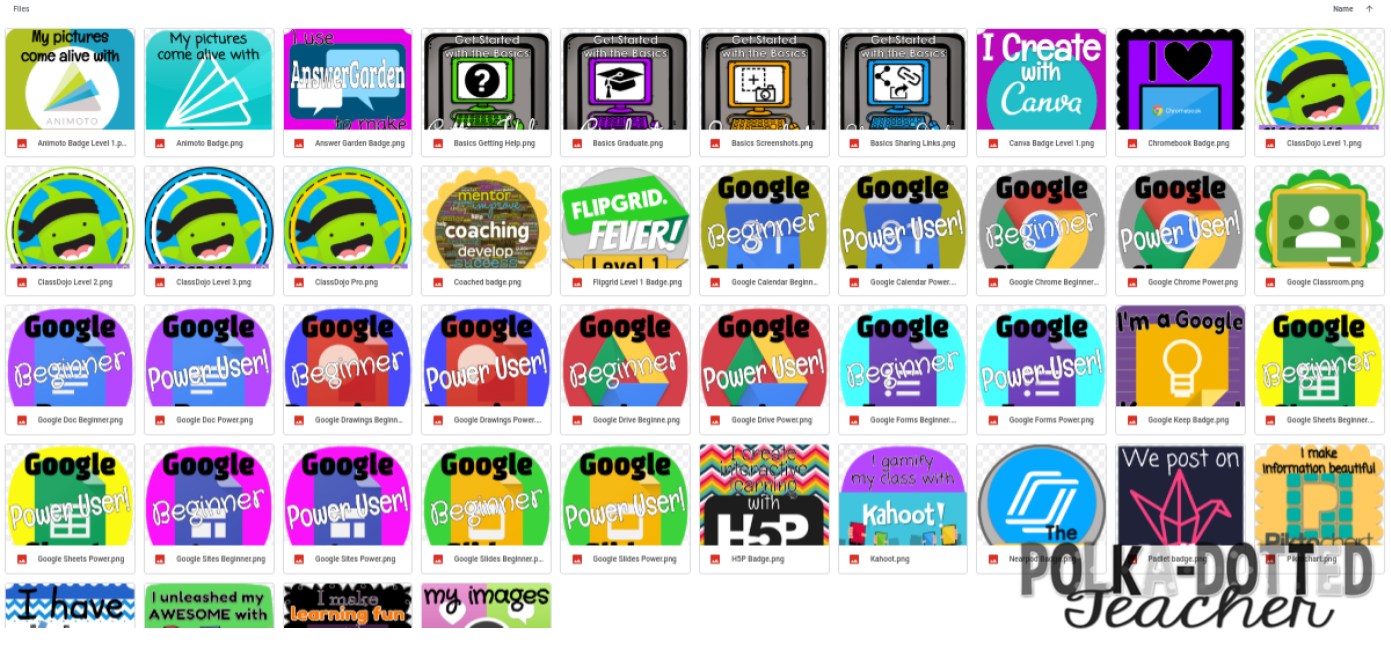
Just click here to access the Google Drive folder where you can download a copy of the badges you would like use.
 Once the learning is complete, evidence of that learning needs to be submitted. Evidence is usually creating something using that tool by the teacher or the student. Or evidence could be a score report from using a tool in a lesson. Whatever the evidence is, the teacher is encouraged to use the learning they are doing in a lesson.
Here is an example of one badge and what must be completed in other to earn a badge, Animoto Level 1...
- Create an Animoto account (if you don't already have one)
- Create a one-minute video aligned to your content area
- Get the link and include it in the badge request form
How do you create the badges?
I create the design for each badge using Google Drawing. Why Google Drawing and not another design program? Every design program has its benefits and purposes...I use multiple different ones depending on my project or mood! Google Drawing works perfectly for me and how I set up the back end of my PD Badging Program by being able to publish an image to the web.
When designing a badge, I use the shapes and fonts available in Google Drawing. I also use clip art from Miss Tiina, Creative Clips, Erin Bradley Designs, and Maree Truelove along with icons from The Noun Project. I also will usually include the logo of the particular tool or website the badge is for.
Where can I get your badges?
Unfortunately you cannot earn my badges. (sorry!) You also cannot buy my badges since I often create my badges using the logo from tools and websites belonging to others. But you are in luck...I am sharing the PNGs for badges I have created and will create with you...
Just click here to access the Google Drive folder where you can download a copy of the badges you would like use.
Do teachers get a physical badge?
Yes! When a badge is requested and approved, the teacher gets a certificate of completion as well as a physical badge! The physical badge is removable vinyl sticker, which can be placed on most surfaces without leaving any residue. I use Sticker You.com because I have found it to be the most affordable. On Sticker You.com, I can get a sheet of 20-2 inch by 2 inch stickers for $9.99, but when you buy more sheets of stickers the cost of each sheet decreases.
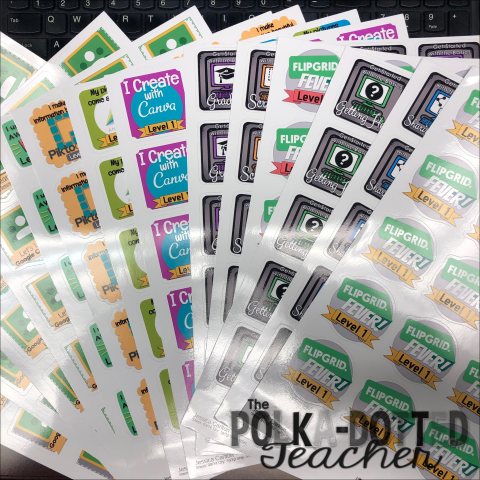
I think I covered everything you could want to know about badges portion of my PD Badging program, but, if you have additional questions, please ask them in the comments! Be on the look out for more information about PD Badging.
02 February 2019
PD Badging - Part 1: The Program
A little back story...
One of my big tasks as a local school technology coordinator/technology coach is providing professional development related to technology and technology integration for the teachers in my school. For the time being, my major time to do this is on the three teacher workdays within the school year. But I knew that in order to help teachers grow and emphasize the importance of tech integration, this was not enough (just look at this month's Educational Leadership from ASCD, which focuses on The Tech Savvy School).
My first attempt was "Y'all Come" sessions before or after school. But between, collaborative planning meetings, IEPs, and other teacher tasks, the numbers that would be able to come were tiny...1 or 2 out of 60+ staff members (which I TOTALLY understand)! I knew this was still not good enough!
After a little reading, my own professional learning, and some collaborating with colleagues inside and outside my school system, I came up with the B.E.S. Tech Challenge...

Part One: What is PD Badging? And how does it work?
PD Badging is a personalized learning format that allows teachers to add to their knowledge and bag of tricks in ways that are "relevant, valuable, and engaging". (eSchool News, "How digital badges are shaking up teacher PD") The teacher gets to choose what they want to learn to benefit him or herself, in turn, receives recognition for his or her work in the form of a badge. PD Badging programs do not have to just be about technology; others have created programs for all areas that would benefit teachers and student achievement.
The program I developed, the B.E.S. Tech Challenge, is a voluntary program. I have borrowed work from a colleague in a nearby school district, Caroline Bucky-Beaver, Instructional Technology Coordinator for the Barrow County School System (Georgia). She introduced the PD Badging System called Ed Tech Innovation Challenges. (She is a PD Badge MASTER! And I thank her soooooooooooooo much for taking time to answer questions that I have had in developing my own program)
Currently I have developed 42 badges, but I am work on creating more badges whenever I have free time. Here are some more specifics:
- Each badge has some form of learning. Learning may take place as a video or article, but there are even badges for receiving coaching too.
- Each badge requires some form of evidence. Teachers may need to take a screen shot, the link to the product created with a digital tool, or a report from using the tool in a lesson. All evidence is encouraged to be used in lessons in the classroom.
- Each badge is worth a number of XP or experience points. The more experience points a badge is worth the more advanced the badge is.
- Teachers can work together to complete their learning and produce evidence of that learning. We will also have on occasion times when in person staff development will count for badges.
- When a teacher has completed all the tasks required for a badge, he or she completes a badge request Google Form where the evidence may also be submitted.
- Once I approve that all tasks have been completed, then I approve the badge, send the teacher a certificate through email, and then issue the teacher a sticker badge.
Coming soon...Part Two: The Badges
01 December 2018
Chromebook Cart Organization

First a little back story...
Here in Georgia, school systems had the option of choosing to complete the 3rd, 4th, and 5th end of grade Georgia Milestones Assessment online or on paper. Up until this school year, my school system then allowed each school to make the choice: online or on paper? This 2018-2019 school year, the choice was made for us...all students are completing the Georgia Milestones Assessment online.
This decision put my school in a bit of a pickle! My school system is not a 1-to-1 device school system...we are the largest school system in the state of Georgia and have over 100,000 students. At my school, we have worked to get device numbers up in classrooms but 3rd grade still had only five laptops per classroom and 4th and 5th had ten total laptops and Chromebooks. My principal and I made the decision...more technology must be purchased!
To get the most bang for our buck, we purchased loads of Chromebooks! Actually enough Chromebooks to fill six carts plus more! Well with this many devices in the building (and wanting them to be used so they stay up-to-date) and the possibility that they would be spread all over on testing days, I needed a good but simple organization system. And what's more simple than color-coding?
Here is how I color-coded our carts:
➡ We started with these carts...

I would have liked to purchase carts that were a little more fun and colorful, but when you are in a large school system sometimes processes and procedures limit your choices. There was one type of charging cart for Chromebooks that were approved for purchase, so the Pro20 Notebook Cart by Spectrum Industries Inc. were the carts for us!
These are pretty standard charging carts. Each cart holds 20 Chromebooks, rolls, and locks. They are not huge or heavy either (trust me...I have pushed them around a bunch!). Although not the prettiest of storage systems...they will do the trick! 😉
➡ Next up vinyl...
I have some experience with vinyl labeling, so I knew that choosing the correct kind of vinyl was of vital importance! Because I didn't want any curling, lifting, and wanting to make it incredibly challenging for picking, I chose to go with Oracle 651 Permanent Outdoor Vinyl. For me, color choice was the most important factor in purchasing so other places may have a better value, but I purchased the vinyl I used for these carts from Expressions Vinyl. I advise overbuying your vinyl because you will save yourself stressful moments.

 |
| Oracle 651 Vinyl @ Expressions Vinyl |
➡ Cutting the vinyl...
I cut the vinyl using my Silhouette Cameo 3. This was really the most stressful part of the process for me! (Like I said, buy enough vinyl to make mistakes on!) I do not cut my vinyl with a mat especially because I used 5 foot long rolls of vinyl, so making sure the vinyl is properly lined was super important! |
| Silhouette Cameo 3 |
➡ Vinyl Application Time...

Application was probably the quickest part of this process! I can be perfectionist and any bubbles in the vinyl drive me crazy so smoothing those out slowed me down a little bit. This was only a big problem on the largest pieces. Vinyl application took place in three parts:
- Applying cart names

- Applying slot numbers

- Applying Chromebook numbers


Do you have sets Chromebooks for check-out at your school? How are they organized? Do you have any ideas how I could improved my carts? Post all your comments below!
21 November 2018
What Teachers Really Want (and Need) for Christmas

I am a huge proponent of "it is the thought that counts", so put those thoughts out there! The absolute best gift is the expressing of your appreciation and thanks for all he or she does! The best part about this is it costs NO money, but it does take your time! Write your child's teacher a letter of appreciation and thanks for all the work he or she does for your child each day. Don't forget to include the specifics about things he or she does that your child talks about at home. Teachers often feel that their work isn't noticed or appreciated. Don't forget to have your child write or dictate a note to you as well.
But if you are wanting to do more, what do teachers really want (and need) for Christmas? Here are some ideas to delight your child's teacher during this holiday season...
🎁 Gift Cards
Ok I know what you are thinking..."Gift cards are so impersonal!" Yes they can be if you don't put a little thought into them. When I was a classroom teacher, I could tell the difference. For example, I don't drink coffee at all...can't even stand the smell of it! What gift card did I get more than any other? Starbucks! I would just give these away...most often to my colleagues who didn't receive student gifts, or I left on police officers' patrol cars as a random act of kindness.
But gift cards really aren't impersonal if you do them right! In fact, the well-thought gift cards were some of my favorite gifts! If you are lucky, you have a room parent that gets the teacher to fill out a favorite things list like mine used to. (Are you a room parent and don't use a favorite things list? Get one here.) Any place your teacher included on this list they would greatly appreciate a gift card for!
No favorite things list? Ask your child about what some of the teachers favorites are... does she drink a Starbucks iced coffee every morning? does she talk about getting lost in the Target all the time? does he have a Friday tradition of having Uber Eats delivered to school? Maybe your child notices her nails are always nicely done but doesn't know where? Send your child into on a detective mission! Teachers are asked so many random questions during the school day that she won't suspect a thing with a question from a child of where do you get your nails done! Anything your child notices frequently about his or her teacher, that would would be thrilled to receive in gift card!

🎁 Classroom Supplies
I loved receiving classroom supplies as Christmas gifts! By December, classroom supplies are already starting to run low! First, classroom supplies don't have be lugged home! Second, who has to pay to restock the classroom...the teacher! Take a peek back at the beginning of the year supply list (already threw that away? Most schools keep that list on their website!) A gift basket of pencils, glue sticks, dry erase markers, or brightly colored copy paper will make a teacher squeal with delight!


In the comments...Teachers, tell us some of your absolute favorite gifts! Parents, get advice on your gift ideas! Can't wait to hear them all!
Not sure what supplies to get? Then see the previous idea...gift card! Give the teacher a gift card to Office Depot, Staples, or Amazon with a sweet note! A teacher would also be excited to receive a TeachersPayTeachers gift card too!
https://pin.it/ktmz7b4lkabdcj
🎁 Movie Tickets or DVD Rental
Have you seen the price of movie tickets these days??? An evening at the movies makes a teacher's wallet cry! Give him or her a gift card worth two tickets to the luxury of an evening movie! Or if you have Red Box in your area...a gift code for a DVD rental will be greatly appreciated as well!
https://pin.it/k56f3kyum7kxgf
🎁 Don't Forget Gift Presentation!
The presentation of your gift is the best way to make it even more special and the best way to show you put the same amount of thought and energy that your child's teacher does each day in the classroom. Your child's teacher spends countless hours every week preparing the best possible lessons for your child. He or she has spent their summer creating a space your child will feel at home in. So don't just slap a sticky bow on lotion gift set!
Presentation doesn't have to be fancy or difficult. Pinterest has loads of ideas of how to present teacher gifts. I have created a whole board full of ideas here. Most have free printables to help you make your gift a little more special. Here are some ideas from my board...
 |
| from Pioneer Party |
 |
| from Paper Trail Design |
 |
| from Creations by Kara |
 |
| from Delightful Order |
12 November 2018
Getting Emoji-fied with Emojily

This past week, I attended GaETC, an educational technology conference here in Georgia! This conference is awesome, and if you ever get a chance to go...jump at it! There are so many great edtech gurus...including one of my favorites, Tony Vincent of https://learninginhand.com/. I attended a couple of his sessions, but one of my favorites was about how to use emojis in instruction.
Well today, I was creating in the app, PicCollage, and of course an ad for another app popped up! (By the way, I very rarely pay for apps, so I see plenty of ads!). This free-mium app allows you to create your own emoji...I couldn’t not download it! It is an adorable app that allows you too...

Because it is free-mium, you have a basic set of parts to create your own emoji.

But even with just those basics, you can still create a pretty cute emoji to use as a sticker in your messaging or texting app!
 But you can also save your emoji to your device, so there are a variety of cute ways you and your students could use this app. Students could create their login/account image for G Suite. Creating an emoji is pretty quick, so students could create an emoji as a response to their learning. As the teacher, you could create a variety of emojis to use as feedback for grading.
Emojily is available in the Apple App Store and Google Play. In the comments below, share other ideas you have for how to use this app!
28 June 2018
My first Google-y Product Update - A Meteorologist's Helpful Tools
Good morning! Are you out on Summer Break like I am? I actually have been out since Memorial Day, but I have been keeping super busy taking classes (I'm getting my coaching endorsement this year!) and TEACHING classes to staff at my school. So now I'm officially on Summer Break with no school responsibilities until the last week of July! (But really who am I kidding...my to-do list is already a mile long!)
So what do I do on my first day of official freedom...I update a product for you! And guess what!?! It's all Google-y! Oh...and interactive notebook-y! But still all kinds of fun for your students!

So what do I do on my first day of official freedom...I update a product for you! And guess what!?! It's all Google-y! Oh...and interactive notebook-y! But still all kinds of fun for your students!
Weather Instrument Cut & Paste has been updated to A Meterologist's Helpful Tools. Click on the picture above to get yours! Students will still be matching names of weather tools to their descriptions. But now includes 3 fomats:
- The original letter-sized (which will fit into a spiral notebook for interactive notebooking)

- *NEW* Composition book-sized (this was my preferred size for interactive notebooking when I was in the classroom)

- *NEW* Google Drive format - DIGITAL CUT & PASTE! - give your student their own copy through Google Classroom (or create a Force A Copy link) and students will drag and drop the names and descriptions.


You can get your updated copy on TeachersPayTeachers! I hope you enjoy these updates! Let me know what you think because I am working to update more of my products like this one!
06 April 2018
Leafy Green Plant Life Cycle
Hey y'all! I hope you have been enjoying the arrival of Spring! Like most of the country, here in Georgia, we still can't quite put away the winter clothes yet, but at the same time everything is covered in a thin layer of sneeze-inducing, yellow pollen.
But you know all that pollen is a good thing...it means all around us plants are growing! I have a resource to share with that will help your students learn about what is happening this time of year. Introducing the Plant Life Cycle Multi-media Text Set...


Get your copy of this resource by clicking on either then links of picture above. Then click on the USE TEMPLATE button. You will now have a copy of the the Plant Life Cycle Multi-media Text Set in your Google Drive and can remix if you like.

But you know all that pollen is a good thing...it means all around us plants are growing! I have a resource to share with that will help your students learn about what is happening this time of year. Introducing the Plant Life Cycle Multi-media Text Set...
In the Plant Life Cycle Multi-media Text Set I have gathered a variety of resources to help your students learn about how plants grow and the steps in the life cycle. I have included a variety of media including:

- videos--including three really cool time-lapse videos of spinach, beans, and an oak tree growing
- reading
- interactive activities
- unlinked observe block--an empty block for you to integrate your choice of plant observation journal whether you would like to link a digital version or direct your students to their paper copy --->
Get your copy of this resource by clicking on either then links of picture above. Then click on the USE TEMPLATE button. You will now have a copy of the the Plant Life Cycle Multi-media Text Set in your Google Drive and can remix if you like.
10 March 2018
Sorry no cookies included in this post...
I have been working with the second grade teachers at my school to incorporate more techy, interactive activities in science and social studies. In the state of Georgia the social studies standards were revised this year to incorporate a new famous Georgian: Juliette Gordon Low. To help out my second grade teachers, I created this Google Slide HyperDoc below:
My teachers are using this HyperDoc in a couple different ways. Some have used the materials whole class while others are having their students make a copy into their Google Drive. Either method both the teachers and students are loving getting to learn about this amazing woman in this way!
*Note* Due to restrictions in my school system on YouTube for students, all videos have been downloaded into my Google Drive then shared. Links to the original YouTube videos are in the Works Cited slides if needed.
Students get to learn about Juliette Gordon Low's life in a variety of way including videos, articles, and an interactive timeline.

Students demonstrate their learning by completing activities in Google Drawing including a timeline,


and character trait graphic organizer.


*Note* Due to restrictions in my school system on YouTube for students, all videos have been downloaded into my Google Drive then shared. Links to the original YouTube videos are in the Works Cited slides if needed.
Students get to learn about Juliette Gordon Low's life in a variety of way including videos, articles, and an interactive timeline.

Students demonstrate their learning by completing activities in Google Drawing including a timeline,
a Venn Diagram comparison with either Jackie Robinson or Martin Luther King, Jr.,
Printable versions of these activities are included in the notes section of the Google Slide.
Students also had the choice between two final projects to complete for the study of Juliette Gordon Low. They could choose to decorate a cookie box to represent Juliette Gordon Low
 or create a badge for Juliette Gordon Low.

You can get your own copy of my Juliette Gordon Low HyperDoc by clicking here or on the picture below:
I hope you enjoy using this HyperDoc if you are a Georgia second grade teacher or would like to study Juliette Gordon Low as part of Women's History Month. Feel free to share with me what your students do with this HyperDoc!
Subscribe to:
Posts
(Atom)








StickerMule
Advertisement


